
Lyric Video Subtitles: How to Create an SRT File from Audio
The fastest way to subtitle a lyric video
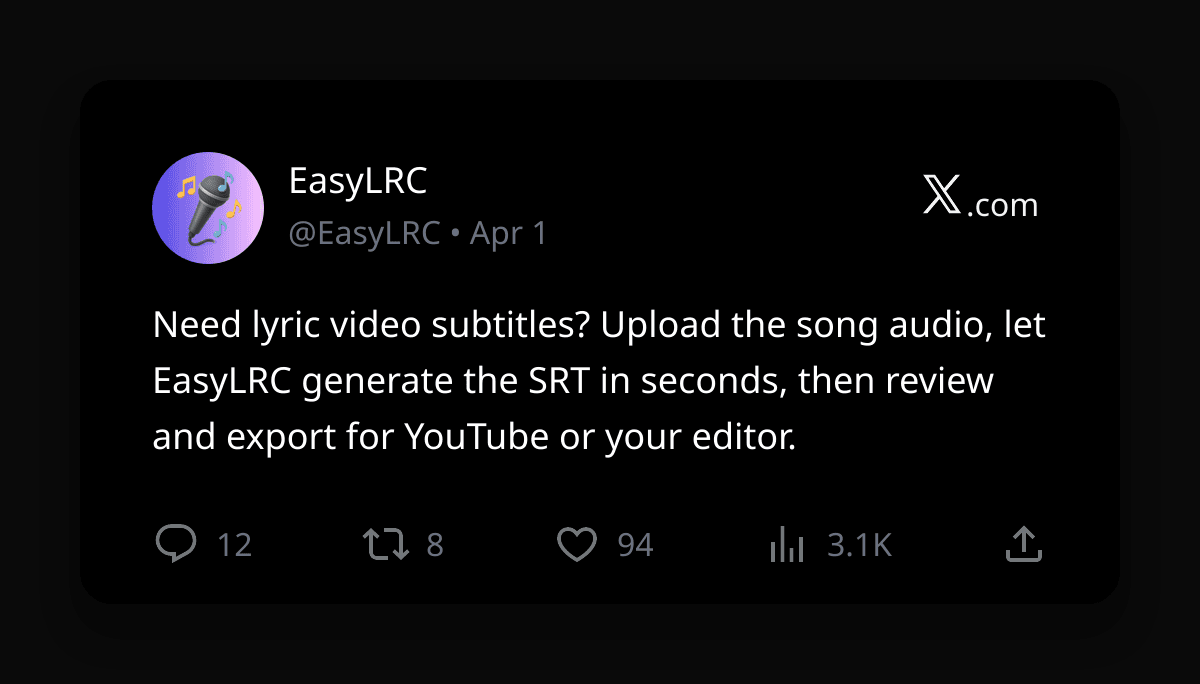
If you already have the finished song audio, the fastest way to subtitle a lyric video is to generate an SRT file directly from the audio instead of timing every lyric line by hand.
With EasyLRC, you upload the audio file, choose the language, let the AI generate the timing, review the result in the editor, and export an .srt file ready for YouTube, Premiere Pro, CapCut, Final Cut Pro, or DaVinci Resolve.
For a normal 3 to 5 minute track, the sync step usually takes about 14 seconds.
Why lyric video creators use SRT
SRT is the most practical format for lyric videos because most video platforms and editors already support it.
Use SRT when you want to: • upload captions to YouTube • import subtitle timing into Premiere Pro or DaVinci Resolve • create editable captions in CapCut or Final Cut Pro • keep captions separate from the video so you can revise them later
If you also need karaoke-style word highlighting for a music player, you can export Enhanced LRC from the same sync job as well.
Ready to try it with your own file?
Upload audio, review the timing, and export the format you need.
Simple workflow: audio file to lyric video subtitles
1. Upload your audio or video Go to EasyLRC Upload and add your MP3, WAV, FLAC, M4A, AAC, OPUS, OGG, MP4, or MOV file. If you have a clean master or vocal-forward version, use that for best accuracy.
2. Select the language Set the correct language before processing. Explicit language selection improves both text accuracy and timing.
3. Let the AI sync the lyrics EasyLRC creates timed lines automatically from the audio. Most songs finish in seconds, not minutes.
4. Review the result in the editor Play the track once and fix any words or timings that need adjustment. Most clean studio tracks only need a few corrections.
5. Export as SRT
Download the .srt file and import it into your video workflow.
That gives you subtitle timing without manually placing every lyric line on the timeline.
Where to use the exported SRT file
YouTube Upload the SRT in YouTube Studio under the Subtitles tab. This gives you proper captions instead of burned-in text only.
Premiere Pro / DaVinci Resolve / Final Cut Pro Import the SRT and use it as a starting point for subtitle styling, placement, and burn-in.
CapCut Import the SRT so you can style captions visually without rebuilding the timing from scratch.
Short-form lyric clips Use the SRT to repurpose the same song into vertical lyric clips for Shorts, Reels, and TikTok.
How to get better subtitle timing
Use the cleanest audio you have Studio masters are easier to transcribe than noisy live recordings.
Set the correct language manually This matters a lot for songs with multilingual lyrics or names that the model could mishear.
Review choruses and repeated lines Repeated sections are fast to check and are usually where creators want the most precision.
Export both SRT and Enhanced LRC if you might need both SRT is best for video. Enhanced LRC is better if you also want synced lyrics in a player or karaoke-style display.
Free vs paid for lyric video work
Free • 5 minutes of audio processing per month • a simple way to test one song • export SRT, LRC, VTT, ASS, TTML, and TXT
Starter - $5/month • 25 minutes per month • a good fit for a few songs each month • includes Enhanced LRC export and 30-day storage
Creator - $9/month • 80 minutes per month • a better fit if you release lyric videos regularly • gives you more room for batches, revisions, and repeat use
See the full pricing page for details.
Frequently Asked Questions
What is the best subtitle format for a lyric video?
For most lyric video workflows, SRT is the most practical format because YouTube and most video editors support it directly. If you also need karaoke-style word highlighting, export Enhanced LRC separately.
Can I create lyric video subtitles from an MP3 file?
Yes. EasyLRC accepts MP3, WAV, FLAC, M4A, AAC, OPUS, OGG, and also MP4 or MOV video uploads. Upload the file, let the AI generate the timing, then export the result as SRT.
Do I have to time every lyric line by hand?
No. The point of this workflow is to avoid manual line-by-line timing. The AI creates the initial timing automatically, and you just review and correct anything that needs adjustment.
Can I use the SRT file on YouTube?
Yes. YouTube accepts SRT uploads directly in YouTube Studio. This is useful for closed captions, search visibility, and accessibility.
Need subtitles for your lyric video?
Upload your audio, generate the SRT, review it, and export in one workflow.